The Cricut Joy Xtra is a smart cutting machine made to bring your creative ideas to life, from custom cards and labels to fun iron-on designs. But before you start crafting, it’s essential to know “how to connect Cricut Joy Xtra to computer” (Windows or Mac). Don’t worry, the process is easy, and this guide will walk you through each step.
Its built-in Bluetooth makes the Cricut Joy Xtra a user favorite for hassle-free wireless setup. This blog will show you exactly how to connect it to your Windows or Mac. Let’s get started on turning your creative visions into reality.
What You’ll Need Before Connecting Cricut Joy Xtra
Before you learn ‘How to Connect Cricut to Computer‘, make sure you have the following essentials ready:
- Cricut Joy Xtra machine
- A Windows or Mac with Bluetooth capability
- Design Space software (download and install it if you haven’t already)
- High-speed internet connection
- Cricut ID (you can create one during setup)
Note: The Cricut Joy Xtra connects only via Bluetooth. If your computer doesn’t support Bluetooth, you’ll need to purchase a compatible adapter.
Setting Up Your Cricut Joy Xtra Machine
In this section, I have outlined everything, from Downloading Cricut Design Space and the setup process to connecting your machine to the computer.
Important: All Cricut machines support both USB and Bluetooth connections, except for the Cricut Joy and Joy Xtra, which connect exclusively via Bluetooth (with no USB support).
Step 1: Unbox and Plug in Your Machine
- Power on both your computer and Cricut Machine.
- Keep your machine within 10-15 feet of your computer for easy pairing.
- Navigate to the official Cricut website using your web browser at Cricut.com/setup
- Follow the on-screen prompts to select or confirm your Cricut Machine Model.
Step 2: Download Cricut Design Space
- After entering your Cricut machine model, accept the Cricut Terms of Use and Privacy Policy, then click the Download button for your operating system.
- For Windows: Double-click the downloaded .exe file. For Mac: Open the .dmg file and follow the on-screen instructions.
- You might be asked to grant permission for the app to install. Click “Yes” to continue.
Note: For Mobile devices, download the Cricut Design Space app from your respective app store (e.g., App Store or Google Play Store).
Step 3: Sign in to Your Cricut Account
- Open Cricut Design Space. If you already have a Cricut ID, Sign in with your email and password. If not, click “Create Cricut ID,” then fill in your name, email, country, and password. Agree to the terms and complete the setup.
Step 4: Complete Setup Form (If Needed)
If you want to create a new ID, follow these necessary steps:
- If you don’t already have an account, click on “Create Cricut ID” and fill out the form.
- You’ll be prompted to enter your first name, last name, and select your country from the dropdown menu.
- Enter your email address and, if required, retype it for confirmation.
- Make sure to review and agree to the Cricut terms of use.
- If prompted, create a strong password for your account.
- Click the button to create your Cricut ID and follow the on-screen commands to confirm your email address or complete the setup process.
- Once you’ve created your account, log in to ‘Cricut Design Space‘ with your new username and password.
How to Connect Cricut Joy Xtra to Computer (Windows)
Since the Cricut Joy Xtra only connects via Bluetooth, here’s how to pair it.
- Ensure the machine is plugged into a power outlet and the power button is pressed, indicated by a lit white light.
- Click the Start button and select Settings (represented by the gear icon).
- Open the Devices section and ensure that Bluetooth is toggledON.
- Then, click “Add Bluetooth or other device” and select “Bluetooth.”
- Now, your computer will start searching for Bluetooth devices.
- Find the name of your Cricut machine in the list of available devices and select it. Select your machine’s name from the list. If prompted, enter the pairing code “0000.”
Note: It’s normal for the Cricut machines to initially show up as an Audio device.
- If prompted for a PIN or pairing code, enter 0000. Once paired, your machine will appear as Connected in your computer’s Bluetooth settings.
- Open Cricut Design Space, click on your profile, then click Settings.
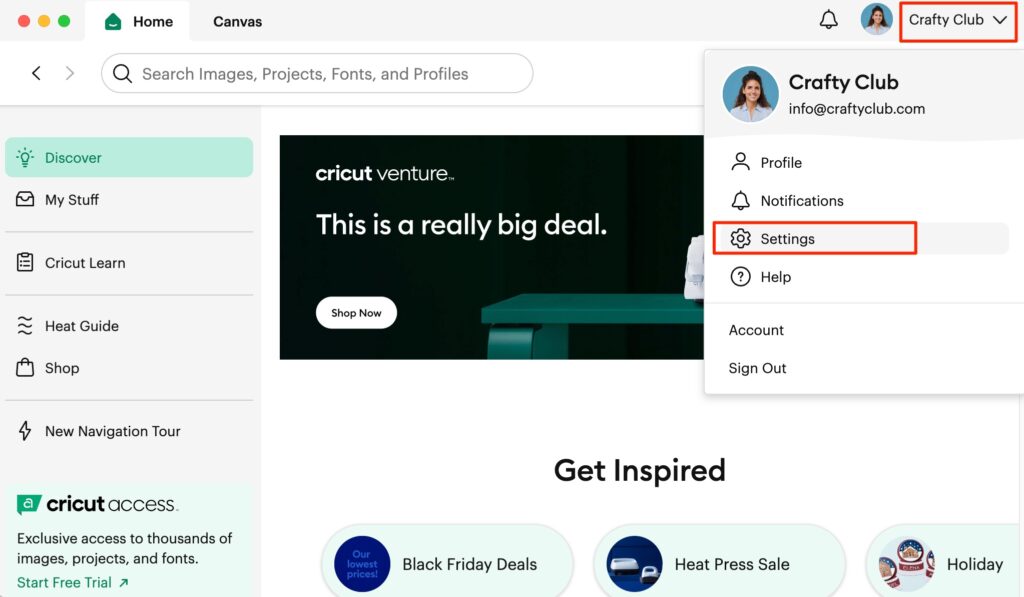
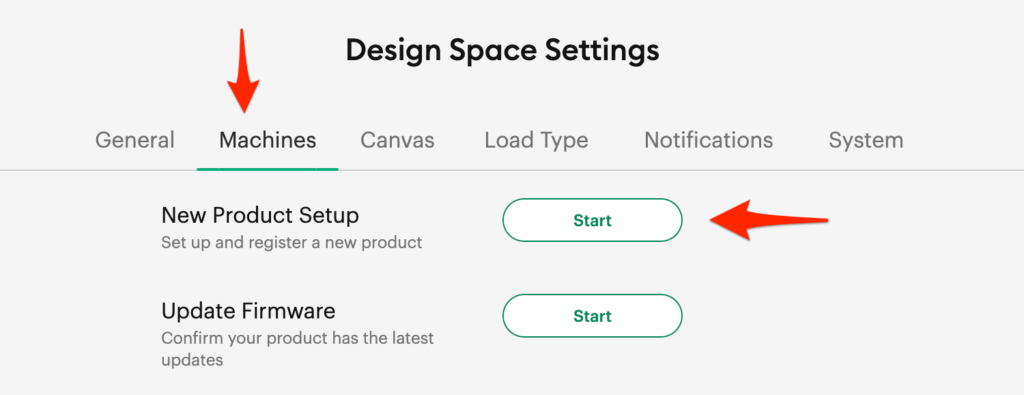
- On the next screen, select Machines as shown in the image below.
- Then, click the Start button next to New Product Setup.
How to Connect Cricut Joy Xtra to Computer (Mac)
To connect your crafting machine to a Mac wirelessly, you’ll need to pair it via Bluetooth in your Mac’s System Preferences and then select it within the Design Space software during the machine setup. Let’s learn the complete process in detail:
Step 1: Turn on your machine and ensure it’s within a short distance (10-15 feet) of your Mac.
Step 2: After that, go to the Apple menu on your Mac, click System Preferences or System Settings, and then choose Bluetooth.
Step 3: Make sure Bluetooth is ON and allow your Mac to search for devices. Select your machine model from the list of available devices.
Step 4: If prompted for a PIN, enter 0000 (four zeroes).
Step 5: Open the Cricut Design Space App on your device.
Step 6: In Cricut Design Space, navigate to the Settings section.
Step 7: Then, select the Machines tab and click on New Product Setup.
Step 8: Choose your ‘Cricut machine model‘ from the list of machines.
Step 9: Cricut Design Space will now detect and connect to your crafting machine via Bluetooth.
Step 10: Follow the on-screen prompts in Cricut Design Space Software to complete the setup of your new Cricut machine.
Frequently Asked Questions (FAQs)
Does Cricut Joy Xtra connect only via Bluetooth?
Yes, the Cricut Joy Xtra connects to computers and mobile devices via Bluetooth only. It does not support a USB connection. To use the machine with your computer, make sure Bluetooth is enabled on your device. After that, locate your machine model in the Bluetooth settings and connect it.
Can I use Cricut Joy Xtra without a Computer or Mobile Device?
No, the Cricut Joy Xtra requires a computer or mobile device with Bluetooth and an internet connection to operate. It works through the Cricut Design Space app, which is essential for creating and sending projects to the machine. While it connects only via Bluetooth, a paired device is necessary for the design process.
